Welcome to the CatCastle Codex!
Hiya! This wiki contains the (very work-in-progress) documentation for CatCastle, the homelab of Steve and Clare.
First, welcome! I'm happy you're interested in using the apps here, hopefully they're useful to you! This main page will walk you through the process of getting set up with your account and connected to our VPN. The rest of this wiki is divided into two main sections: Admin and Services. The former is mainly for myself to document how things work and are laid out. The latter is meant for all of you to show you the various services that are hosted here, and any specific configuration I recommended/is required to use them. If you ever have any questions, please reach out to me at [email protected] or through Signal and I'll give you a hand.
With that out of the way, let's get you set up!
Authentik
To get started, you'll need a link to create an Authentik account. You should have gotten an email from [email protected] with the link, but if not reach out to me and I'll send you one. PLEASE do not share this link with anyone, or by any means other than Signal or secured email. If you want to invite someone else on, talk with me and I'll see about getting them set up, too.
Click it, and you will be prompted to choose a username, provide an email, set a password, etc. This account will, with a few exceptions, be the way you sign in to all of the apps in the rest of CatCastle.1 This is one of three applications that is exposed publicly, the others being this page of the wiki (the rest requires a VPN connection) and Netbird. As such, make sure you are connected via HTTPS, and ideally on a trusted internet connection, before creating an account. If you ever lose access to this account, or believe someone else may have gained access to it, let me know so I can deactivate it and get you a new invite link.
Once you've created an Authentik account, the next step is getting connected to our VPN.
Netbird
Netbird is a fancy VPN wrapper that makes it relatively easy to get all of your devices connected to our network. Once you have your Authentik account setup, you can head to https://netbird.cashtoyes.xyz to get started. Once you log in, it will walk you through how to get a "peer" (device) connected to the network. Be aware that there is a cloud version of Netbird that some apps (specifically the mobile apps) default to, so be sure you follow the instructions to connect the app to https://netbird.cashtoyes.xyz instead of the default cloud instance.
Once you have the client installed on your device, configured, authenticated, and connected, you can test your connection by opening a browser and going to https://cashtoyes.xyz. If everything worked, you should see a page like this:
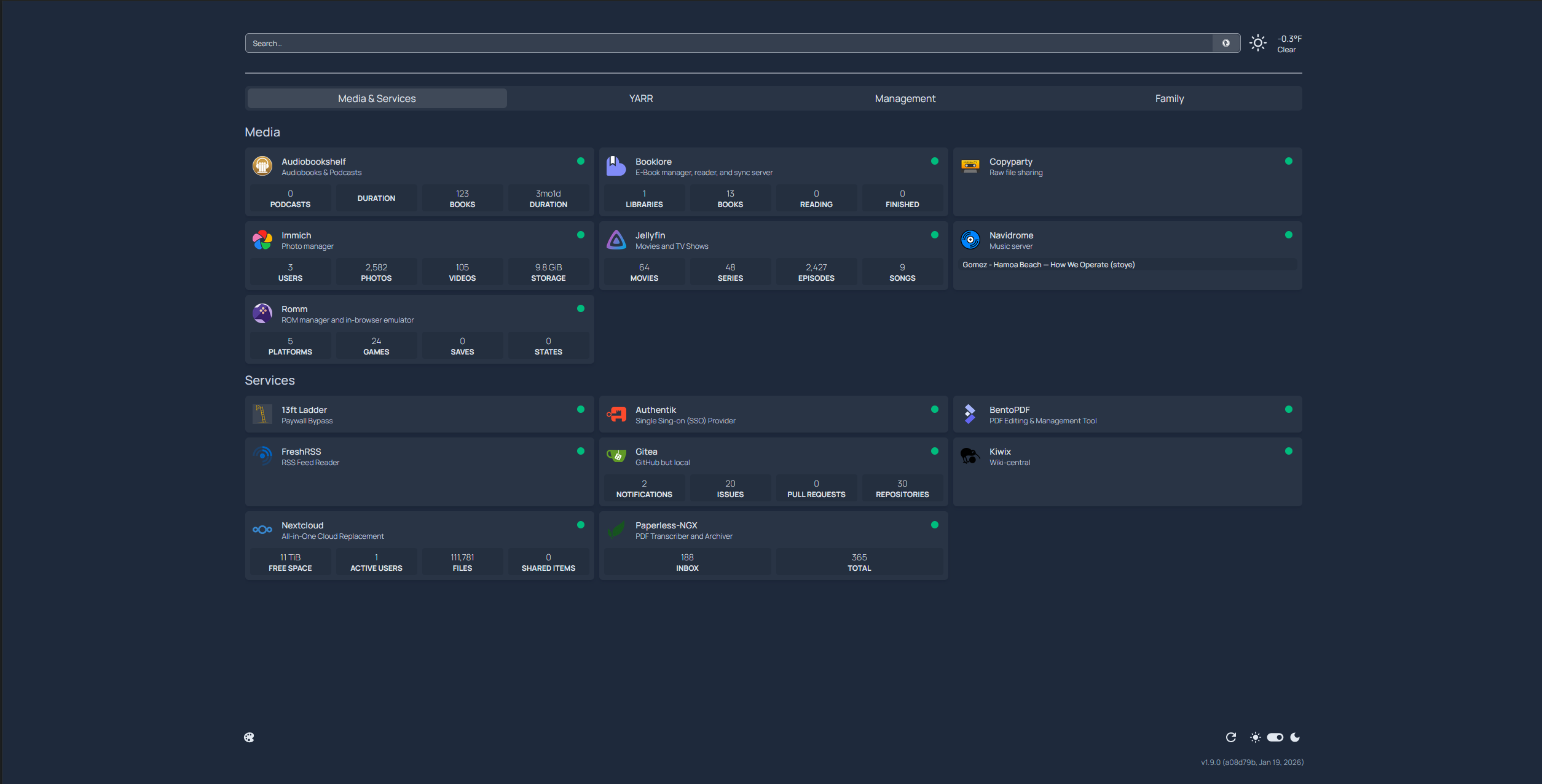
The specific apps on that page might differ depending on if I've played with the layout at all, but if you see that page, congrats! You're connected! Keep in mind that to access any of these services, the device you're using MUST be connected to the VPN through Netbird. If you ever get a "URL not found" or similar error, make sure you're connected to the VPN. If you are and still have issues, come yell at me.
Next Steps
Take a look at the homepage, it lists all the services we have hosted here. The first tab (Media & Services) is most of what you'll probably want to check out. You can see more information about each of them on their relevant service pages (once I get around to writing them lol), but for now check out the Services Summary.
- The current main exception is Jellyfin. There is an known upstream issue with it where some browser/OS combinations just don't forward correctly. Contact me if you have this issue and I'll get you a normal username & password.